Map and List
The map and list are synchronized: what you see on the map corresponds to what you see on the list, except for specific monuments (only present in the list) that do not have a geolocation reference.
The filters on the left allow you to refine the search for monuments by:
- municipalities
- monument categories
- out-of-competition monuments (showing all the monuments on the map)
- monuments without photos (to promote discovery and highlight monuments without any uploaded photos)
- monuments without coordinates (only in the list)
The switch between map and list, located in the top left corner of the map/list panel, allows for quick change of view.
This feature is very useful when viewing the details of a monument, which will appear in a third quadrant on the right, leaving the map or list view to its left.
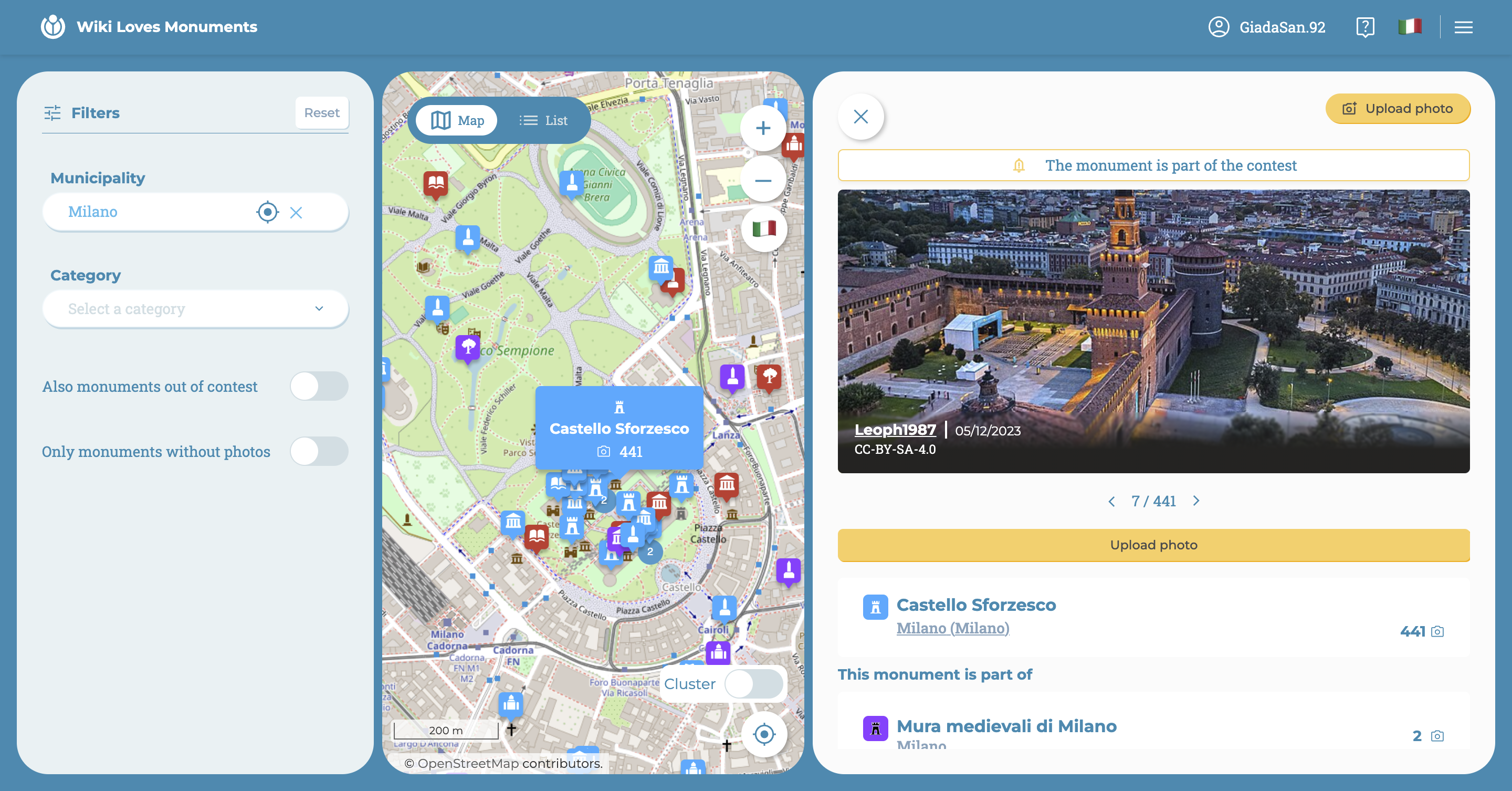
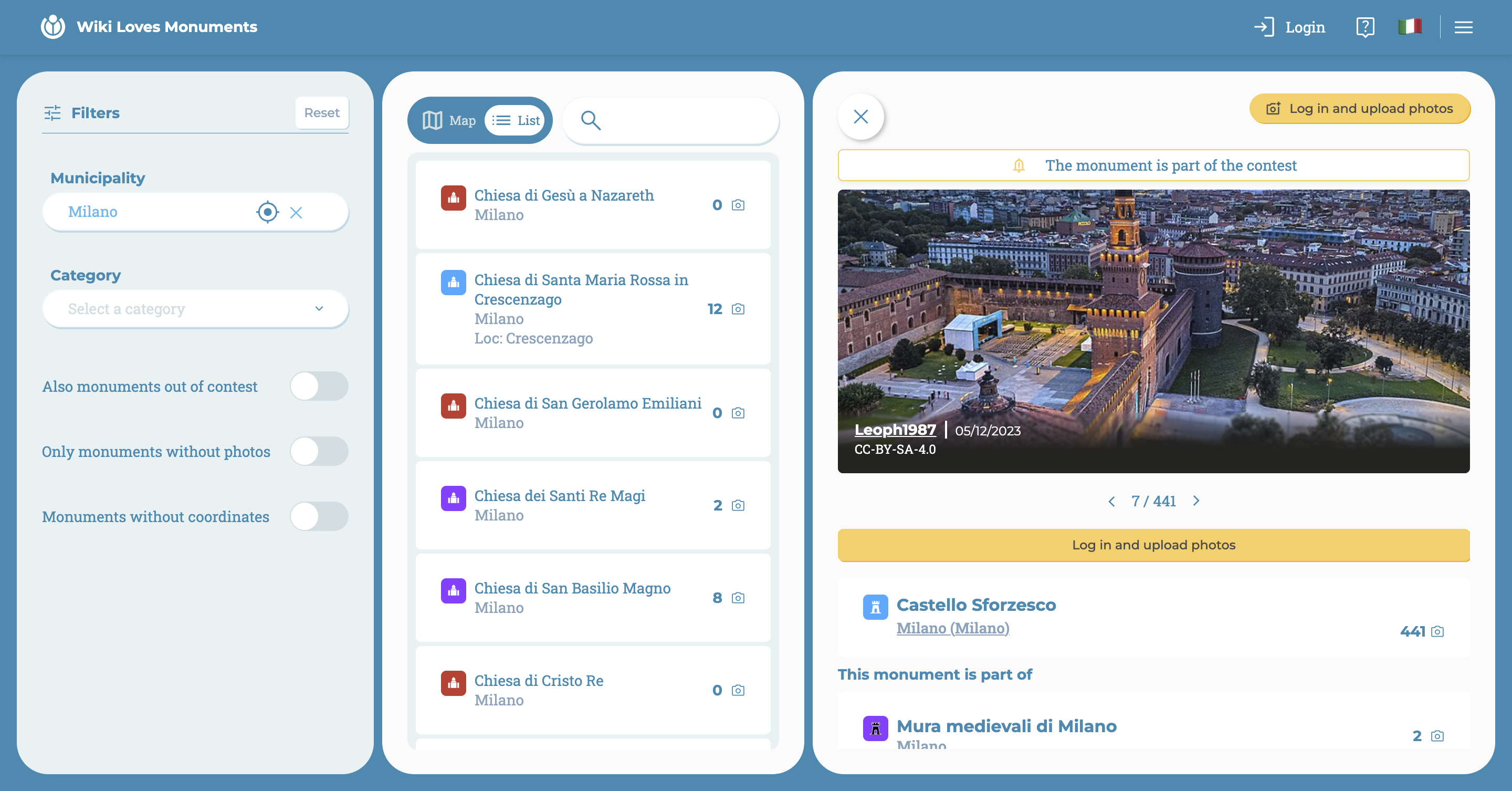
This way, you can both see where the selected monument is located, and it is extremely easy to move slightly and select other monuments in the area.
The list becomes very useful if you want to directly search for the monument of interest by name: once found and selected, its card will always appear on the right.
Map
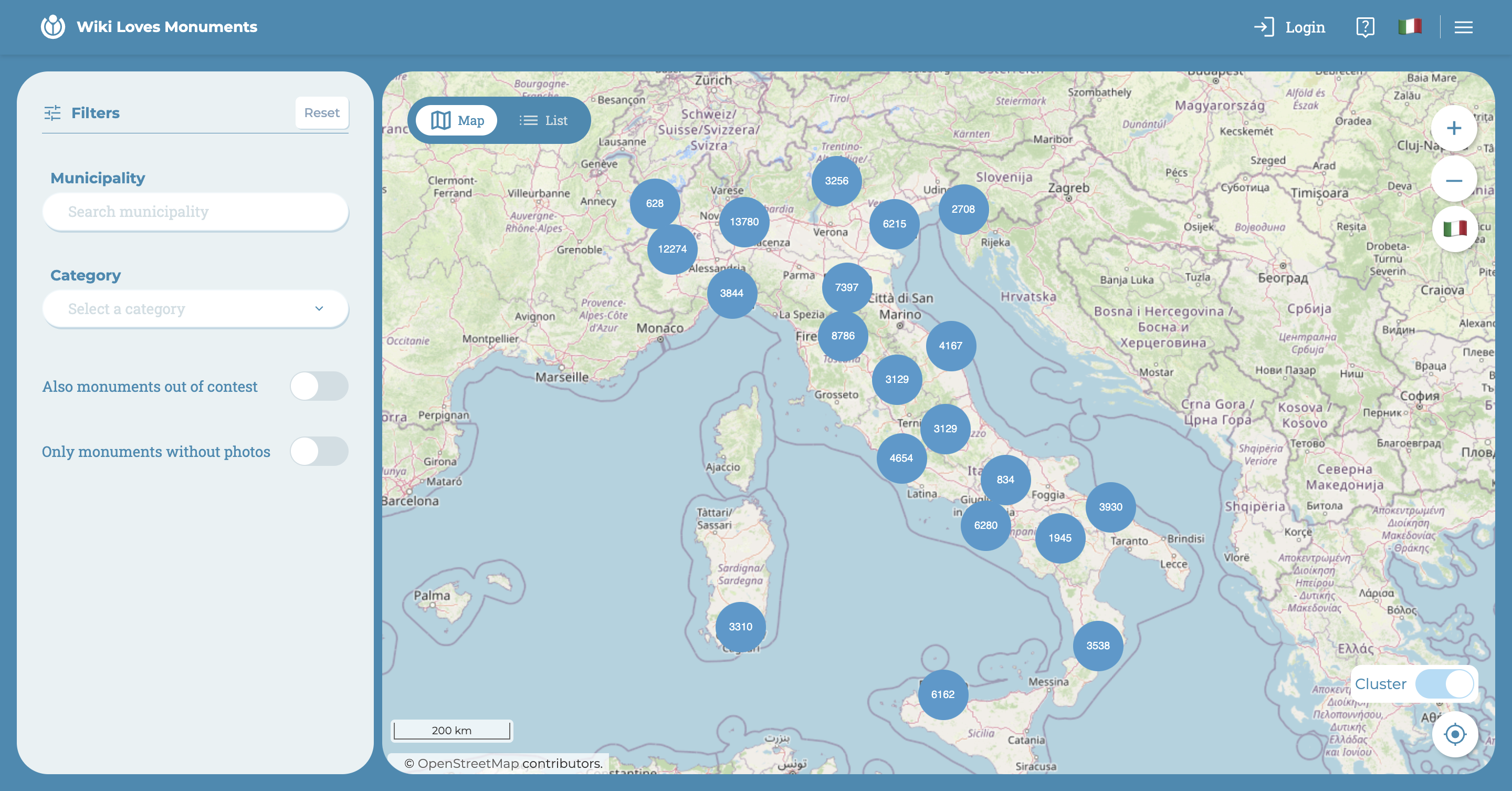
In the top right corner of the map, there are commands to move with zoom.
In the bottom right corner, there is the cluster, which is a function that allows you to "explode" the numbered blue dots and display all the markers present in the framed area. This feature can only be used when zoomed in to a certain level.
Here's an example below:
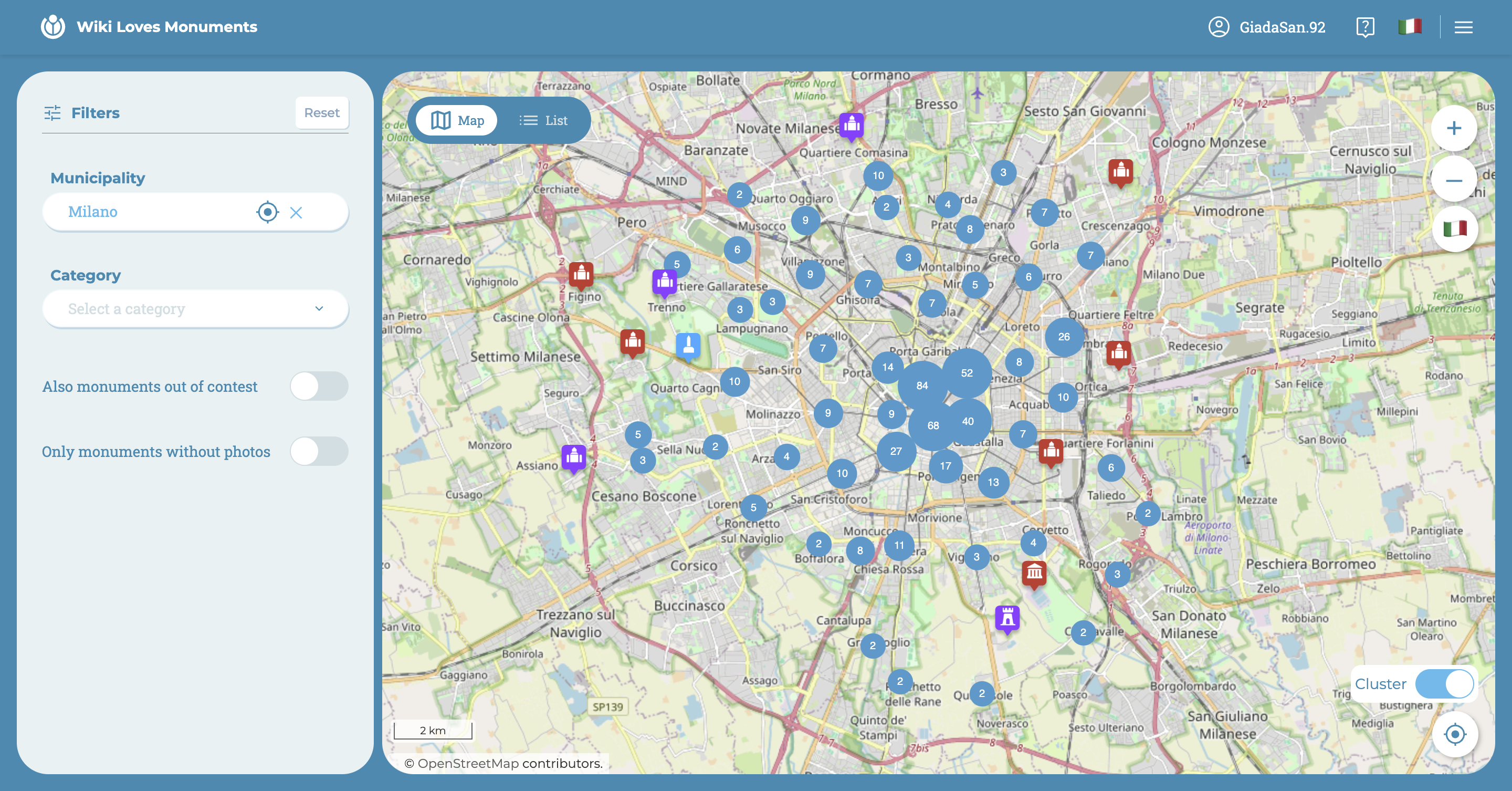
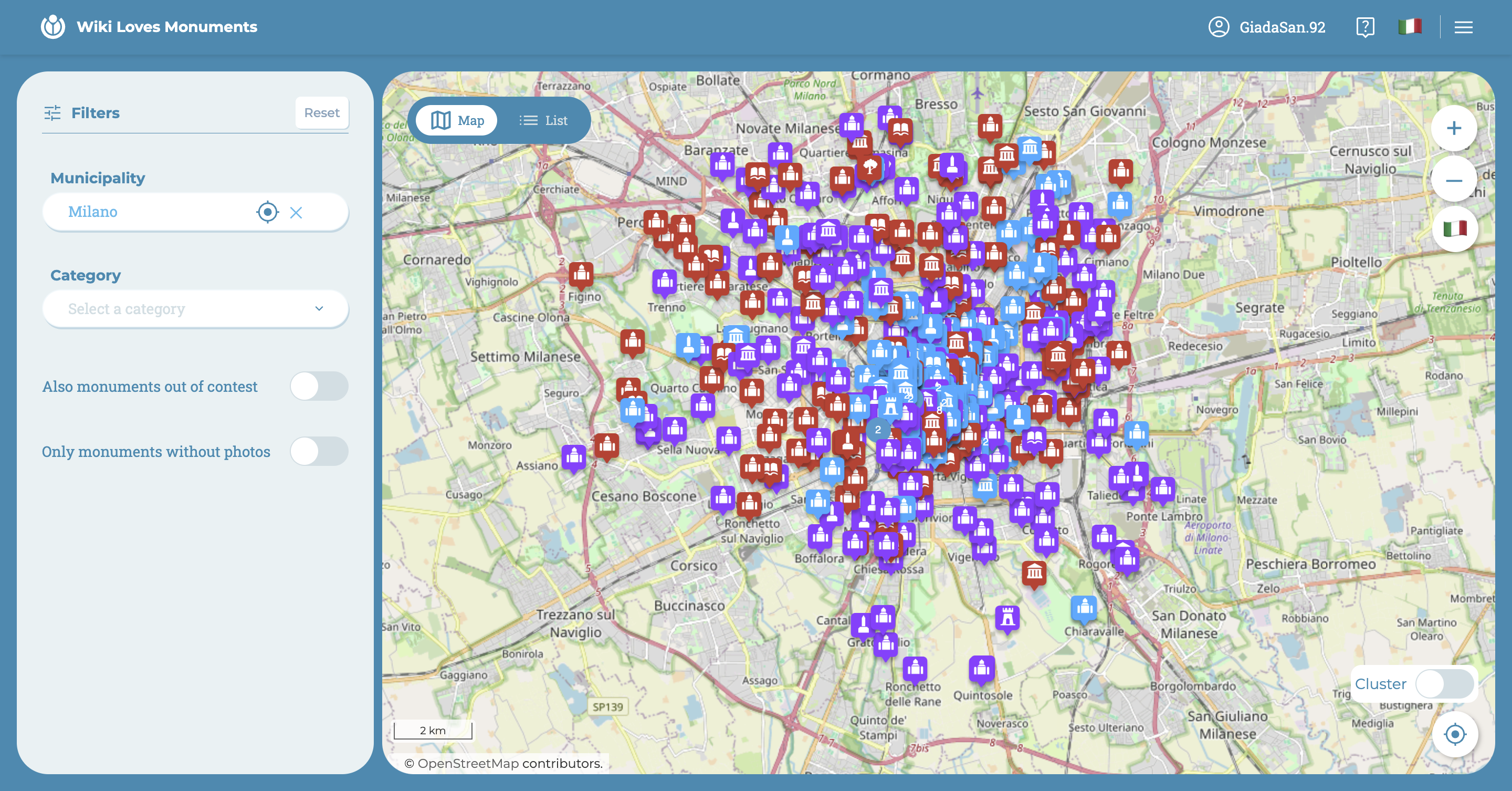
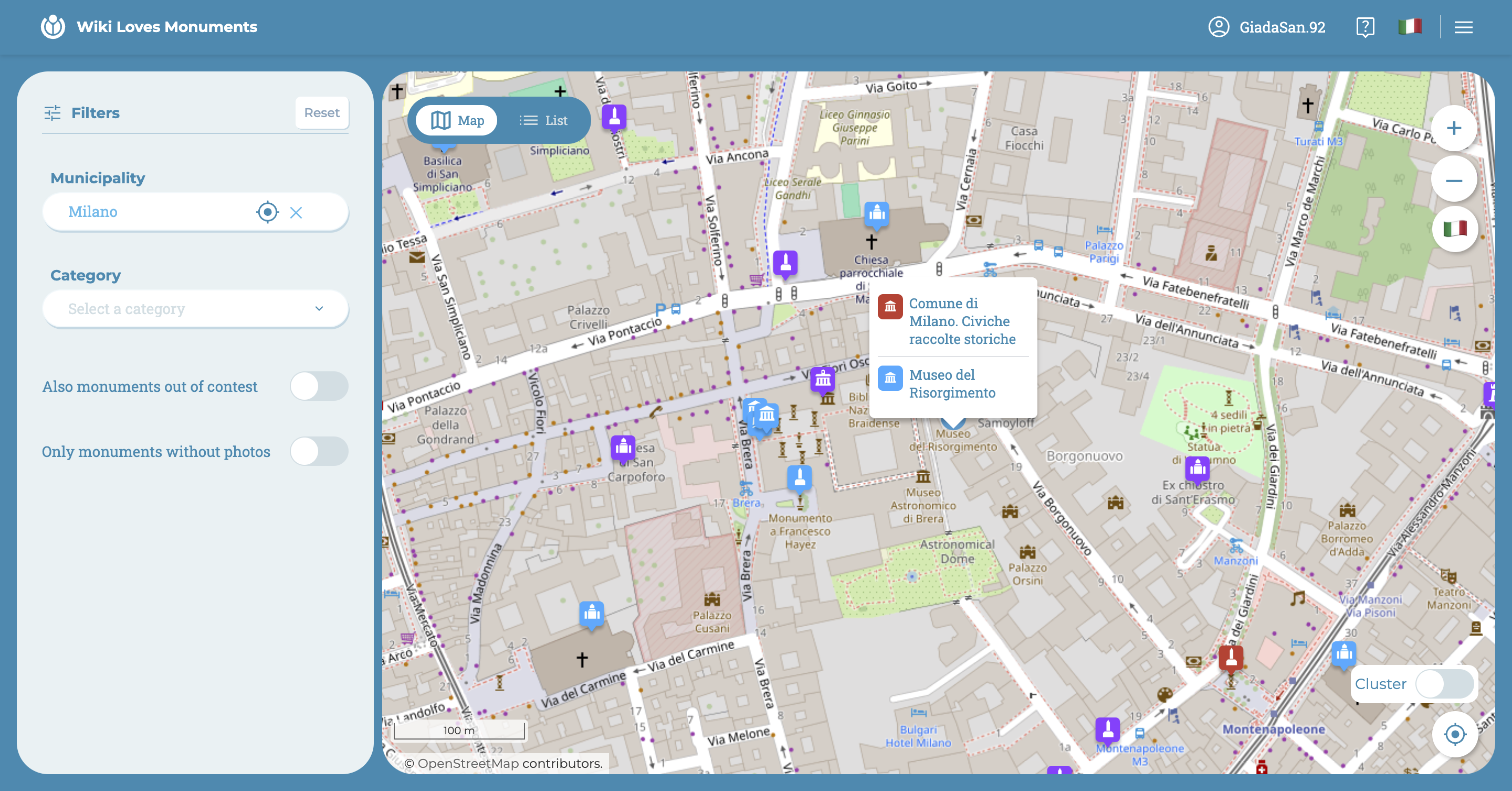
In some cases, there are small clusters that do not split. By clicking on them, the two monuments that correspond to those exact coordinates will be shown together (which is why they overlap on the map).
Below the cluster, there is a button that allows you to view the area where you are on the map through geolocation. By clicking on it, if you haven't already given consent to use geolocation, a message requesting access will appear from the browser.
When you identify a monument that you want to explore, simply click on it and a larger marker with the monument's name will appear on the map, and to the right of the map, its detail page will appear.
List
If you access the list for the first time and have not yet had the opportunity to consent to the use of geolocation, the browser will definitely ask for consent to access certain app functions.
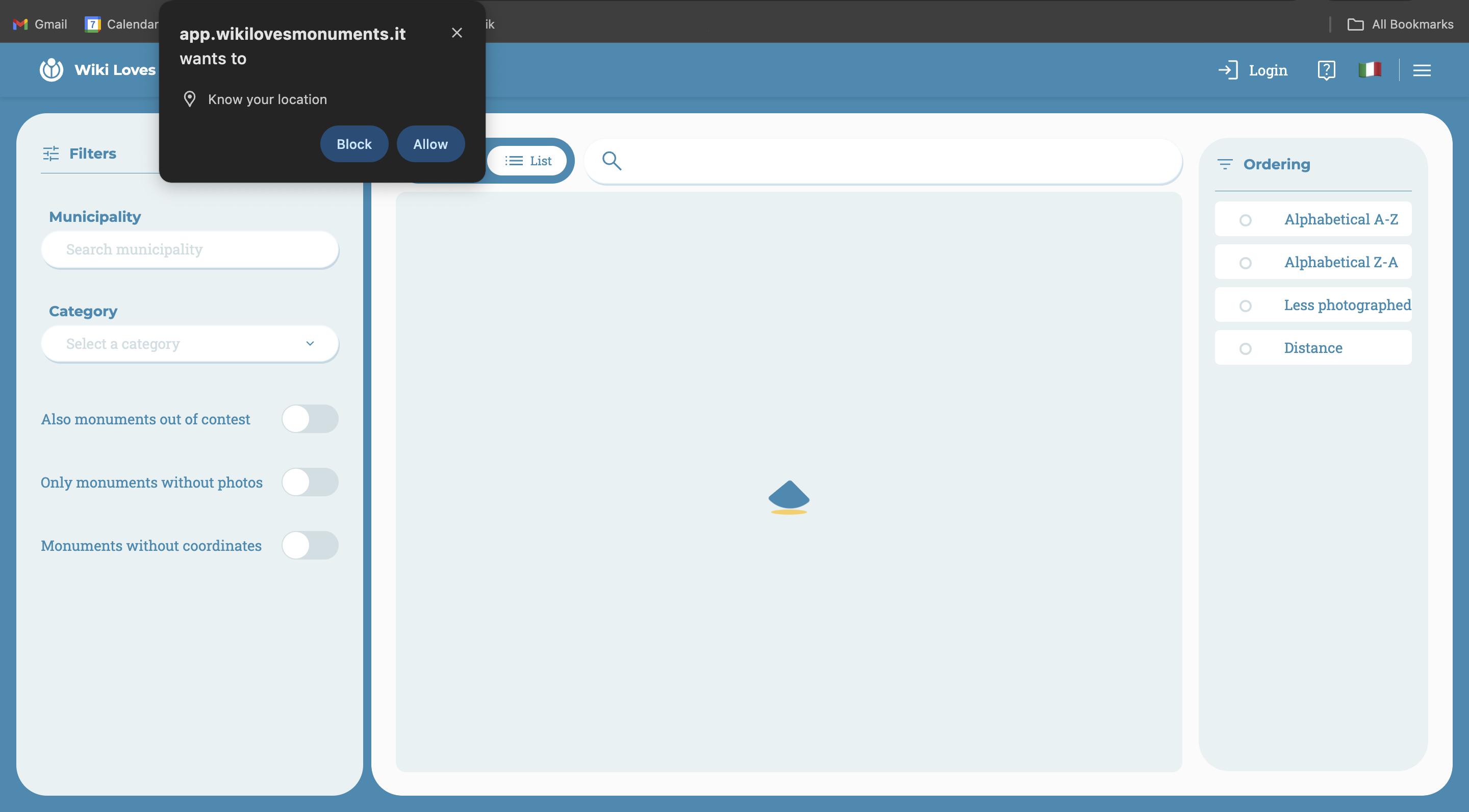
The convenience of the list is that you can directly search for a monument by name, or combine filters and sorting options to analyze the list in more detail.
In fact, in addition to the filters on the left seen previously, the list presents sorting options on its right:
- Distance from the user's current location (geolocation required)
- Least photographed
- Alphabetical order
Unlike the map, the list can display additional information about the monuments:
- Municipality of belonging
- Fraction
- Exact number of photographs
- Distance in kilometers from the user
- Monuments without coordinates